
How I turned an old Echo Dot into a fully local Home Assistant voice assistant
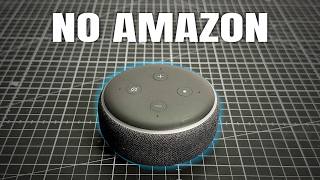
Still have a third‑gen Echo Dot lying around? With a bit of soldering and some open source software, you can turn it into a fully local voice assistant that talks directly to Home Assistant—no Amazon cloud involved.
What this project does (and what it doesn’t)
The goal is simple: reuse a 2018 Echo Dot as a Home Assistant “voice satellite” that:
• Listens for a wake word (like “Alexa”)
• Sends your voice to your own Home Assistant server for processing
• Controls your smart home locally instead of going through Amazon’s servers
This is done using an open source project called Echo Dot Assist, which roots supported Echo Dots and installs custom firmware that integrates with Home Assistant.
Important limitations:
• Only the 2018 Echo Dot 3rd gen model D9N29T is supported
• The later refresh and the “with clock” version are not supported
• There’s a real risk of bricking the device during rooting
What you need before you start
To pull this off, you’ll need both hardware tools and a Linux machine.
Hardware and tools:
• A 2018 Echo Dot 3rd gen, model D9N29T
• A regular USB data cable (not USB‑C)
• Something to cut and strip the USB cable
• T6 screwdriver bit
• Soldering iron and solder
• Wire strippers
• Tweezers (very helpful for precise soldering)
• Tools to pry open the Echo Dot enclosure
On the software side:
• A computer running Linux directly (not just in a VM for this step)
• Git installed
• Home Assistant already set up on your network (can be on a mini PC, VM, etc.)
Opening the Echo Dot and adding USB
The Echo Dot doesn’t expose its USB data lines externally, so the first step is to open it and wire your own USB connection directly to the board.
The high‑level process:
1. Open the Echo Dot using your pry tools and T6 bit to access the main board.
2. Take an old USB data cable and cut off the device end (leave the computer end intact).
3. Strip the cable to expose the individual wires inside.
Inside a typical USB cable you’ll find:
• Ground (usually black)
• Data− (usually white)
• Data+ (usually green)
• 5V (usually red)
Following the Echo Dot Assist wiring guide, you then solder:
• Ground to the ground test pad
• Data− to the D− test pad
• Data+ to the D+ test pad
The 5V (red) wire is not used here, so it gets cut off instead of being connected to the board. This step is the fiddliest part of the whole project: you’re soldering thin wires directly to small test pads with no connector to stabilize them, so a steady hand and tweezers help a lot.
Rooting with Echo Dot Assist
Once the USB cable is attached, you’re ready to run the rooting and setup process using Echo Dot Assist.
First, grab the project and prepare the script:
1. Clone the repository with git clone.
2. cd into the project directory.
3. Make the setup script executable using chmod.
4. Run the setup script.
The script will guide you through most of the process:
• Select your Echo Dot model (make sure it’s the 2018 D9N29T).
• Confirm your choice.
• Manually download three required files from URLs shown in the terminal and save them into your downloads directory.
Putting the Echo Dot into boot mode
Next, you connect the Echo Dot to your Linux machine over the soldered USB cable.
The sequence is important:
1. Unplug the Echo Dot’s power.
2. Plug your modified USB cable into the Linux PC (an extension cable can make this easier).
3. Press and hold the Action button on the Echo Dot (the button with the dot symbol).
4. While holding the button, connect the power to the Echo Dot.
5. Keep holding until the terminal tells you to release it and press Enter.
At this point, the script takes over. You’ll see the Echo Dot cycling through different LED colors while the rooting and flashing process runs. Before the setup finishes, you’ll be asked to enter your Wi‑Fi details so the rooted Echo can join your network.
Connecting the rooted Echo Dot to Home Assistant
Once the Echo Dot is rooted and on your Wi‑Fi, it should show up in Home Assistant as an ESPHome device.
To add it:
1. In Home Assistant, go to Settings → Devices & Services.
2. Look for a newly discovered ESPHome device—that’s your Echo Dot.
3. Click to add and configure it.
In some cases, Home Assistant may fail to find the device by hostname. If that happens, log into your router, find the Echo Dot in the DHCP client list, and grab its IP address. You can then use that IP to add the device.
During setup, you’ll be prompted to:
• Say the wake word (for example, “Alexa”) twice so the system can confirm it.
• Assign the Echo Dot to an area (like “Living Room”).
• Choose the voice processing mode—in this case, full local processing.
Installing Piper and Whisper for local voice processing
For local voice control, Home Assistant uses two key components:
• Piper – for text‑to‑speech (TTS), so the assistant can speak back to you.
• Whisper – for speech‑to‑text (STT), so it can understand what you’re saying.
Home Assistant will install these as part of the voice satellite setup. However, performance and even basic functionality depend heavily on the hardware you’re running Home Assistant on.
Fixing a Piper CPU compatibility issue
In this setup, Home Assistant was running inside a virtual machine on a small Celeron mini PC, with only one CPU core and 3 GB RAM assigned. During installation, Piper failed to start properly.
Checking the Piper service showed it was stuck in a “starting” state for a long time. Looking into the logs revealed the cause: the CPU type reported to Piper was KVM64, not x86_64-v2, which Piper expected.
The problem turned out to be the VM configuration:
• The VM was running on Proxmox.
• The CPU type for this VM was set to KVM64, a very generic virtual CPU profile.
The fix was simple:
1. Open the VM settings in Proxmox.
2. Change the CPU type from KVM64 to host (so the VM exposes the real CPU features).
3. Restart the VM.
After that, Piper started correctly, and rerunning the Echo Dot setup completed successfully. Whisper also installed without issues.
First tests: it works, but it’s slow
With everything wired and installed, it was time to test real commands. The assistant language was set to German so everyone in the household could use it naturally.
Example commands:
• “Alexa, Licht an.” (turn on the lights)
• “Alexa, Licht aus.” (turn off the lights)
The good news: the Echo Dot heard the commands and Home Assistant controlled the lights correctly. The bad news: the first responses took around 30–40 seconds from speaking to action. That delay came almost entirely from Whisper’s speech‑to‑text processing on underpowered hardware.
With only one CPU core and 3 GB RAM on a low‑end Celeron mini PC, full Whisper‑based transcription is simply slow.
Speeding things up with speech-to-phrase
To improve responsiveness, the next step was to try speech‑to‑phrase, an alternative approach that doesn’t transcribe arbitrary sentences. Instead, it matches your speech against a set of known phrases like “turn on the lights” or “what time is it?”.
Here’s how it was set up in Home Assistant:
1. Install the speech‑to‑phrase app from the Home Assistant add‑ons/apps section.
2. Go to Settings → Devices & Services and scroll down to the Wyoming protocol integration.
3. Add a new speech‑to‑text provider and select speech‑to‑phrase.
4. Go to Settings → Voice Assistants and, for the assistant you’re using, switch its speech‑to‑text provider to speech‑to‑phrase.
The difference in speed was noticeable:
• Full speech‑to‑text (Whisper): around 40 seconds per command.
• Speech‑to‑phrase: around 15 seconds per command.
Still not instant, but much more usable for simple smart home commands like turning lights on and off.
Real-world performance and trade-offs
At this point, the Echo Dot was fully functional as a local Home Assistant voice satellite:
• Wake word detection on the Echo Dot.
• Voice captured locally and sent to Home Assistant.
• Commands processed locally using Whisper or speech‑to‑phrase.
• Responses spoken back through the Echo Dot using Piper.
However, the experience is tightly coupled to your Home Assistant hardware:
• Low‑end CPU and limited RAM make local speech processing slow.
• Running Home Assistant inside a VM adds overhead and can introduce compatibility quirks (like the CPU type issue).
• More powerful hardware or GPU acceleration would dramatically improve responsiveness.
If you’re serious about a snappy local voice assistant, consider upgrading your Home Assistant server or moving it off a heavily constrained VM. That’s the next planned step in this setup, with the expectation that better hardware will cut response times significantly.
Privacy, control, and reusing old hardware
Despite the rough edges, this project is a great example of what’s possible when you combine open source tooling with existing consumer hardware:
• Your voice commands stay on your network instead of going to Amazon’s cloud.
• You gain more control over how the assistant behaves and which services it uses.
• An old Echo Dot gets a new life instead of sitting in a drawer.
If you’re into local voice tech, you might also be interested in running your own voice models on a PC, like using Meta’s Voicebox to clone voices in a fully local setup—covered in more detail in this guide to a free AI voice generator on your PC.
Should you try this yourself?
This isn’t a beginner‑friendly project. You should only attempt it if:
• You’re comfortable opening and modifying electronics.
• You can solder small wires to tiny test pads.
• You’re okay with the real possibility of bricking the Echo Dot.
• You already run (or plan to run) Home Assistant.
If that sounds like fun, Echo Dot Assist offers a powerful way to add local voice control to your smart home. If not, you might prefer to build a voice assistant from scratch using dedicated microphones and speakers, or lean on alternative ecosystems—like switching to HomePods instead of Alexa, as explored in this deep dive into replacing Alexa with Apple HomePods.
Either way, projects like this show just how far you can push existing devices once you’re willing to open them up and take control of the software running inside.





Comments
No comments yet. Be the first to share your thoughts!