
How to automatically generate music and sound effects for your videos with ACE Studio
Manually adding music and sound effects to video can be one of the most time-consuming parts of editing. Hunting through sound libraries, lining up hits with action, and tweaking timing quickly adds up. An AI-powered feature in ACE Studio changes that by automatically generating both music and sound effects that sync to your footage—while still letting you refine every detail.
What ACE Studio’s Video Audio Feature Does
ACE Studio is best known as an AI music tool that turns MIDI into customizable vocal and instrumental tracks. It can generate full songs, let you add lyrics to AI voices, and offers many of the same capabilities you’d expect from modern AI music platforms.
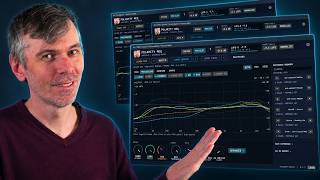
This particular feature focuses on video: you import a clip, describe what you want, and an AI agent analyzes the footage to automatically create:
• A sound effects track (SFX) that matches the on-screen action
• A music track that follows the mood and key moments in the video
The AI doesn’t just generate a single flattened audio file. Instead, it places individual sound effects and music clips on a timeline, giving you the freedom to move, trim, fade, or replace any element.
If you’re new to ACE Studio in general, you might also want to explore how to run its local model in this guide to ACE 1.5 XL as a free local AI music generator.
How the AI Agent Workflow Feels in Practice
The core of the experience is a conversation with an AI agent inside ACE Studio. Once you drag a video into the empty grid, you simply tell the agent what you want in plain language—no special prompt tricks required.
Step 1: Generate Sound Effects
Many editors will find it easiest to start with sound effects. After importing a video, you might give the agent a prompt like:
“Generate an appropriate sound effects track for this weather-related video where a tornado is coming in from the distance and is going to destroy the house. There should be sounds of wood smashing, debris, farm animals, and intense wind.”
The agent then:
• Analyzes the video for key actions and motion
• Creates individual sound effects (wind, impacts, animal sounds, debris, etc.)
• Automatically places each effect at the right moment on the timeline
Once it’s done, you can see a full SFX layout—wind swells, impacts, roars, footsteps, and more—already aligned to the action. If something is slightly off, you can nudge clips a few frames, trim them, or add fade-ins and fade-outs for cleaner transitions.
Step 2: Generate Music
Next, you can ask the agent to create a score tailored to the same video. For example:
“Create an ominous soundtrack for a video where a huge tornado is barreling in on a home and is going to destroy it. I want accents in the music to hit on the beats in the video where specific action happens.”
Here, ACE Studio does deeper analysis than a typical text-to-music tool. It looks for key visual beats—like the tornado hitting the house or a character reacting—and tries to place musical hits or swells at those moments.
The music generation takes a bit longer than simple prompt-based music services because it’s not just matching a vibe; it’s trying to sync to the actual video timeline. Once the track is generated, you can:
• Listen to the music alone or with SFX
• Adjust where the music starts and ends
• Trim or reposition the track so climaxes land exactly on important shots
In one example, the generated track was slightly longer than the video. Simply aligning the end of the music to the end of the clip caused the musical hits to fall perfectly on the destruction moments—showing that the AI had structured the piece around those key beats.
Fine-Tuning Sound Effects with Simple Prompts
One of the strongest parts of this workflow is how easy it is to fix gaps or add new details. Instead of hunting for files in a library, you just select a region on the timeline and describe the sound you need.
Action Sci-Fi Scene
In a sci-fi sequence where a man runs through metal corridors, the editor asks the agent for an “intense, dynamic sound effects track” with:
• Every footstep on metal
• Sparks and metal hits
• Heavy breathing and heartbeats near the climax
• A monster roar at the end
ACE Studio generates a dense SFX layout: footsteps, door sounds, impacts, breathing, and the monster growl. From there, it’s just a matter of small refinements:
• Drag the monster roar later so it lines up with the creature’s reveal
• Copy and paste existing footsteps to fill areas where the character keeps running
• Move a glass explosion earlier so it matches the moment a window shatters
When a new effect is needed—like a whoosh when a character throws an energy device—you simply highlight the relevant frames and prompt something like “an electro space whoosh for when he throws the light thing.” The AI generates a custom effect and drops it right into that slot. If it’s a bit early or late, you just slide it over a few frames.
Volume balancing is just as straightforward: open the track controls and lower loud elements (like breathing) or boost quieter ones (like a subtle spark) until the mix feels right.
Cartoon-Style Chase Scene
In a more lighthearted, animated-style clip of a pizza delivery rider racing through a city, the same workflow applies:
• First, generate a base SFX pass for jumps, landings, neon sparks, and collisions.
• Then, notice what’s missing—like the constant engine sound of the bike.
To fix that, you can ask the agent to “add a sound effects track that captures the ongoing running engine of the bike as it travels across the road. It should pretty much run the length of the video.” ACE Studio creates a continuous engine sound that you can trim and fade out when the bike stops.
Need more detail? You can add specific moments like:
• A louder hit when the bike slams into a parking meter (by moving that effect to its own track and raising the volume)
• A tire skid when the rider slides to a stop (generated from a short, targeted prompt)
Scoring Your Scene with Custom Music
Once the sound effects feel right, it’s time to add music that matches the tone of the scene. Again, you just describe what you want in natural language.
Different Moods for Different Videos
Across the examples, ACE Studio handles very different musical directions:
• Ominous orchestral-style score for a tornado destroying a farmhouse
• Pulse-pounding EDM/orchestral hybrid for a sci-fi chase
• Fun, whimsical chase music for a cartoon-style pizza delivery sequence
For the sci-fi run, a prompt like “a pulse-pounding score for a man frantically running for his life from some unseen force, futuristic EDM/orchestral fusion” yields a driving track that supports the tension. For the cartoon pizza chase, a “fun whimsical musical chase” prompt produces playful music that matches the over-the-top stunts and falling debris.
The impressive part is how often ACE Studio lines up musical hits with visual events automatically. In the pizza scene, for example, a big musical blast lands exactly when a giant statue crashes onto a car—without any manual timing work.
Adding Custom Musical Events
Beyond full-length tracks, you can also create short musical stingers for specific moments. For instance, when the monster appears at the end of the sci-fi corridor scene, you might want an extra dramatic hit.
You can create a new music track, select the moment of the reveal, and prompt something like “a dramatic but quick orchestral swell with a massive percussion hit at the end and a sustained low tone.” ACE Studio generates a short musical event you can place right on the reveal, then fade out the main score underneath it for maximum impact.
Why This Workflow Feels Different from Other Tools
There have been automatic music and SFX tools for video before, but they often feel like black boxes: you upload a clip, get a single baked-in result, and have little control over individual sounds or musical moments.
ACE Studio’s approach is different because it combines:
• Agent-style prompting: You talk to it like an assistant, refining what you want step by step.
• Timeline control: Every sound effect and music clip appears as an editable object you can move, trim, and mix.
• Deep video analysis: The AI doesn’t just set a general mood—it actively looks for action beats and tries to hit them musically and sonically.
This makes it useful whether you’re a beginner who wants a strong starting point or an experienced editor who wants to save time on the tedious parts and focus on creative decisions.
If you’re interested in pairing AI-generated sound with AI-generated visuals, you might also like exploring how to run a local AI video generator on your own PC.
Overall, this ACE Studio feature turns what used to be hours of sound design and scoring into a fast, iterative process: describe what you want, let the AI build a detailed first pass, then tweak timing, levels, and extra moments until the scene feels just right.



Comments
No comments yet. Be the first to share your thoughts!